OpenQR

Scan a QR code on your Quest.

OpenQR reads the code through the headset's passthrough cameras and opens the link in the Quest browser. It keeps no scan history, so the next person on a shared headset sees none of yours.

  • Free
  • Quest 3 and 3S
  • Apache 2.0
  • No account
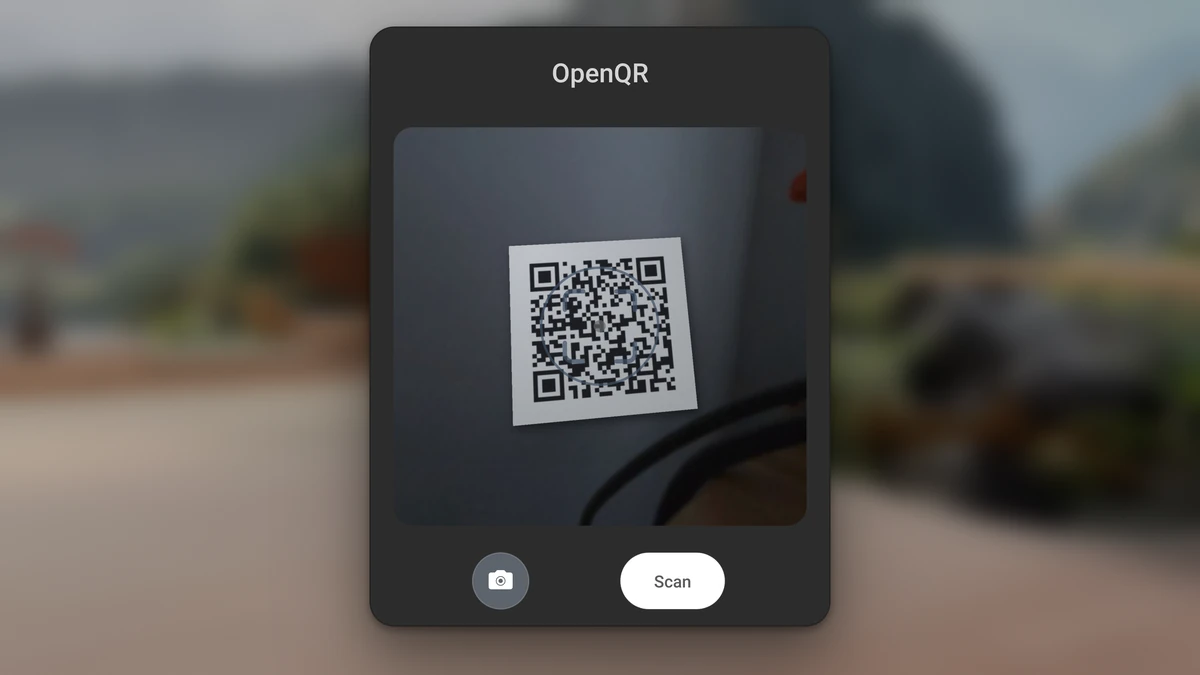
The OpenQR scan panel on a Quest 3 with a printed QR code lined up in the scan area under the target ring, a camera button and a Scan button.
The scan panel as it sits in front of you on a Quest 3. Line up a printed code behind it, then press Scan.

Open the app, line up the code, press Scan.

Allow camera access the first time. After that, these three steps are the whole flow.

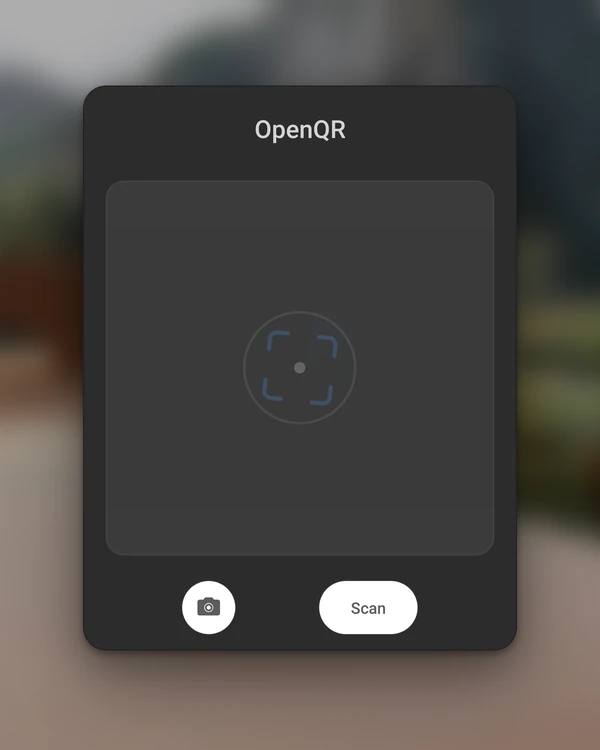
  1. The OpenQR panel in a Quest home environment, with an empty scan area, a camera button and a Scan button

    Open OpenQR

    Launch it from your library. The scan panel appears in front of you, and there is nothing to sign in to.

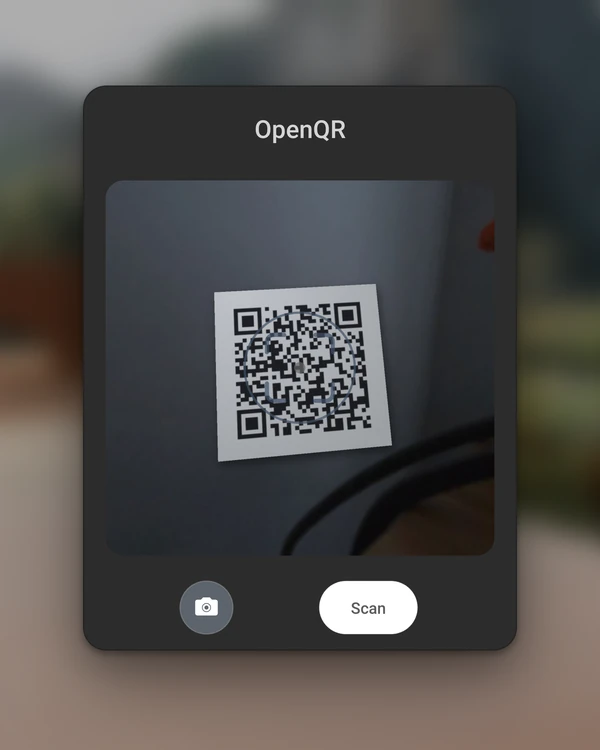
  2. The OpenQR panel with the camera preview turned on, showing the room through the passthrough cameras and a printed QR code lined up under the target ring

    Line up the code, then press Scan

    Move until the printed code sits inside the scan area. The camera button adds an optional live preview, useful in immersive view.

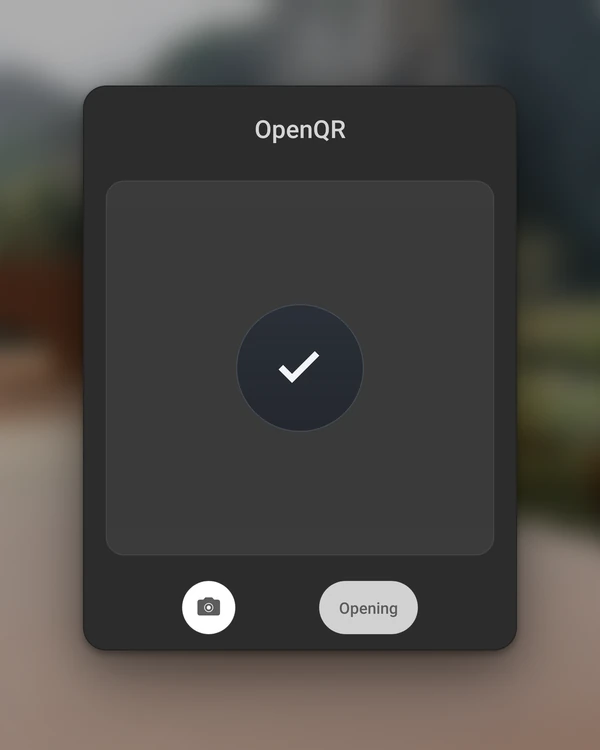
  3. The OpenQR panel showing a tick and an Opening button after a successful scan

    The link opens

    OpenQR hands off the link. Close that app to scan the next code.

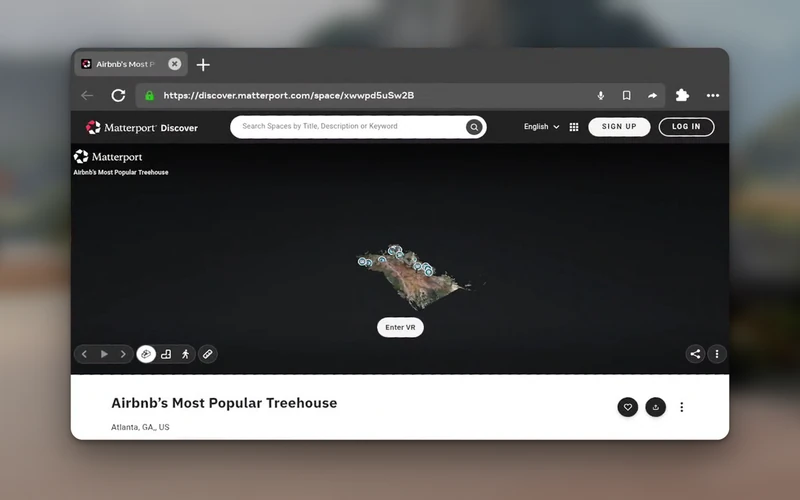
The Quest browser window in a Quest home environment, showing a Matterport 3D tour of a treehouse that OpenQR opened from a scanned code

The link opens in the right app.

Websites open in the Quest browser. YouTube links play in YouTube VR, 360° videos included, and Meta Horizon Store links go to the Store page. When you close that app, you're back at the scanner for the next code.

Opens
Web links, and app links for apps that claim them
Blocks
Scripts, local files and intent:// links. Wi‑Fi, contact and plain-text codes show as unsupported.
Stores
Local logs leave out QR contents and URLs.
Setup and troubleshooting guides

Made for headsets that many people share.

Museum exhibit
A code beside an object points the visitor to its guide.
Classroom
A code on the worksheet takes a student to the page the teacher picked, so nobody types a web address with a controller.
Front desk
A guest at reception scans a code on the counter to open the visitor map or welcome page.

Nothing to clean up
in OpenQR.

OpenQR has no internet permission. It reads camera frames on the headset to find the code, then discards them. It does not collect, send, sell or share personal data, and it never contacts Orgista.

Read the privacy policy
Scan history
None. OpenQR saves no codes or URLs.
Account
None. Nothing to sign in to or sign up for.
Analytics
None. No ads, tracking or crash-reporting SDKs.
Source
Apache 2.0 on GitHub.

Common questions

What does OpenQR do?

It reads a QR code through the Quest's passthrough cameras and opens the link: websites in the Quest browser, YouTube links in YouTube VR, Store links on the Store page. A deep link such as myapp:// opens the app that claims it.

Which headsets does it run on?

Meta Quest 3 and Quest 3S. Both have the passthrough cameras OpenQR needs.

Does OpenQR keep a scan history?

No. OpenQR decodes camera frames in memory and discards them. Local logs leave out QR contents and URLs, and the app has no internet permission.

Which codes will it refuse?

OpenQR only opens web and app links. It blocks scripts, local files and intent:// links. Wi‑Fi details, contact cards and plain text stay in OpenQR, marked as unsupported.

Is OpenQR open source?

Yes. The full source is on GitHub under the Apache 2.0 license, and the APK is on the releases page for anyone who sideloads. OpenStream, OpenPanel and OpenPDF are on GitHub too while they are in development.

Can it be set up for my school or museum?

The free app works there as it is. For a custom setup, describe what you need on the licensing page.

OpenQR Free for Quest 3 and 3S, no account needed